
YOUR TAG. THEIR PROFILE.
Make it their tag.
One step at a time.
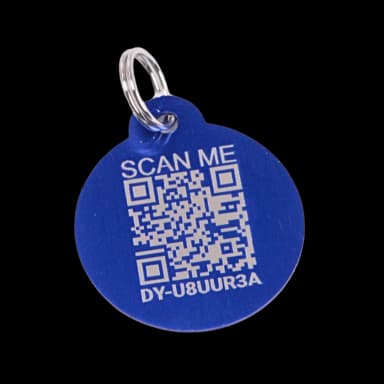
Have your tag nearby. Scan its QR code with your phone camera and tap the link that appears. This walkthrough shows what comes next.
LET SOPHIA WALK YOU THROUGH
Connect your tagAt your own pace.
Follow the first steps from a QR code to a pet profile.
Browse all 12 video guidesRead the captionsVideo transcript
What Sophia says in this video, with timestamps. Read without playing it. Also check the accompanying note and guide for the current process.
- Time 0:00
Hi, I'm Sophia, Driyu's AI Guide avatar.
- Time 0:03
While the human team at Driyu is out helping more pets stay safe,
- Time 0:07
I'm here to walk you through how to activate your Driyu tag.
- Time 0:11
In this guide, I'll explain each step clearly so you can follow along and
- Time 0:15
connect your tag to your pet's profile.
- Time 0:18
The good news is, activation is simple.
- Time 0:21
You do not need to download an app, and you do not need a credit card.
- Time 0:25
Let's get your pet connected.
- Time 0:28
First, scan the QR code on the back of your Driyu tag using your phone's
- Time 0:33
camera. Once your tag is detected, Driyu will guide you to the next step.
- Time 0:39
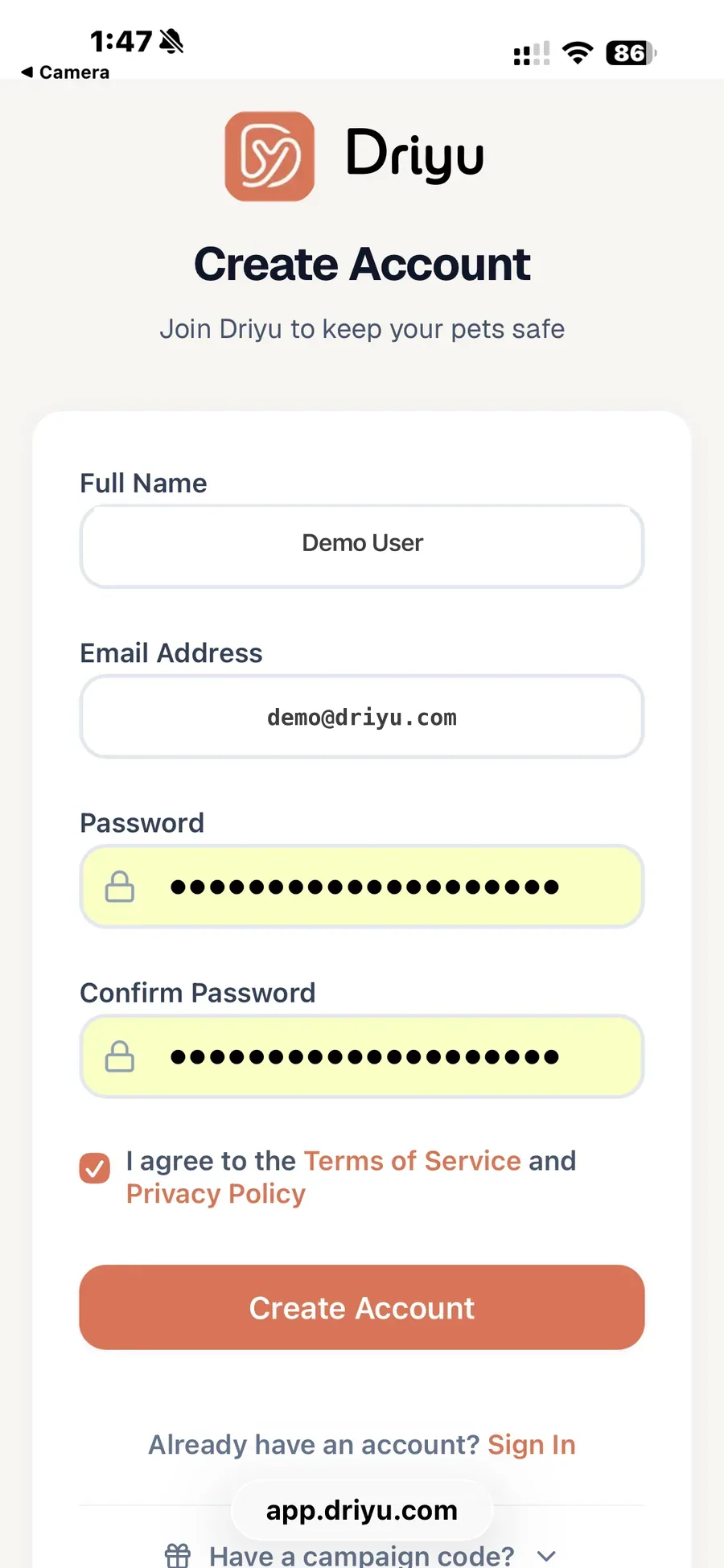
From there, you can create a free Driyu account,
- Time 0:42
or log in if you already have one.
- Time 0:45
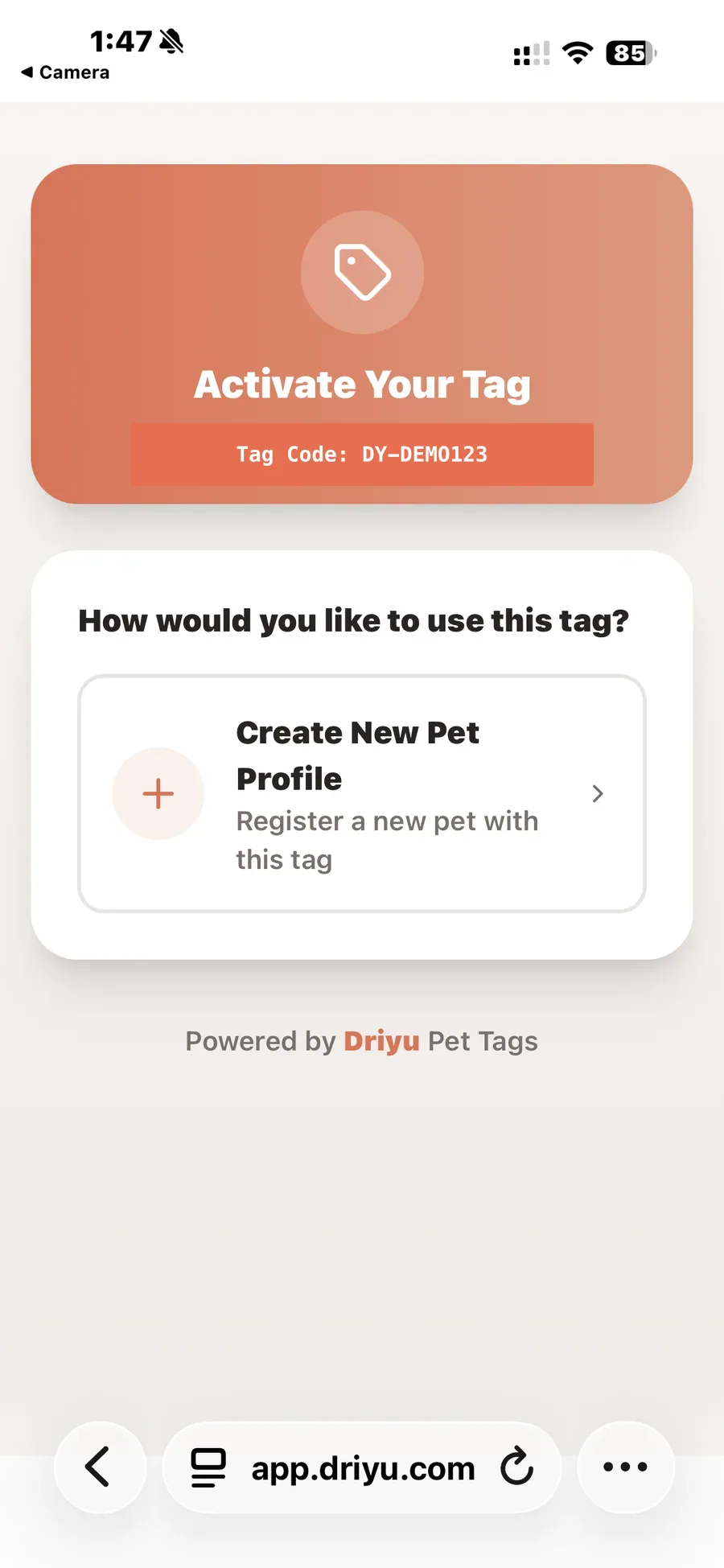
After your account is ready, you'll be able to activate the tag.
- Time 0:50
Next, Driyu will ask if you want to create a new pet.
- Time 0:53
This is how the tag becomes connected to the right pet profile.
- Time 0:58
You'll start by adding your pet's basic details,
- Time 1:00
such as their name and other simple information.
- Time 1:03
You may also add a photo at this stage.
- Time 1:06
The photo is optional, but we recommend adding one because it helps identify
- Time 1:11
your pet more clearly if they are ever found.
- Time 1:15
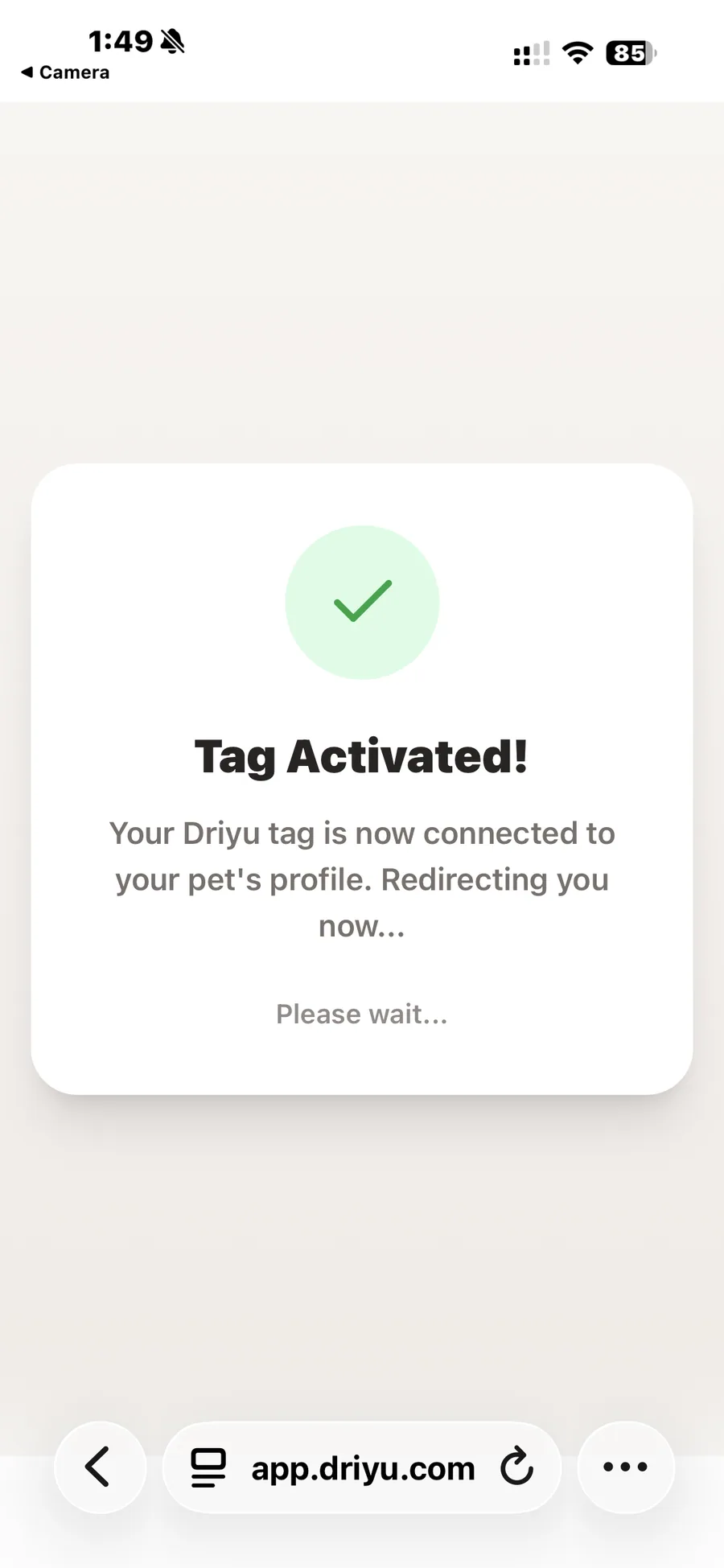
Once those first steps are complete, you'll see a confirmation that your tag
- Time 1:19
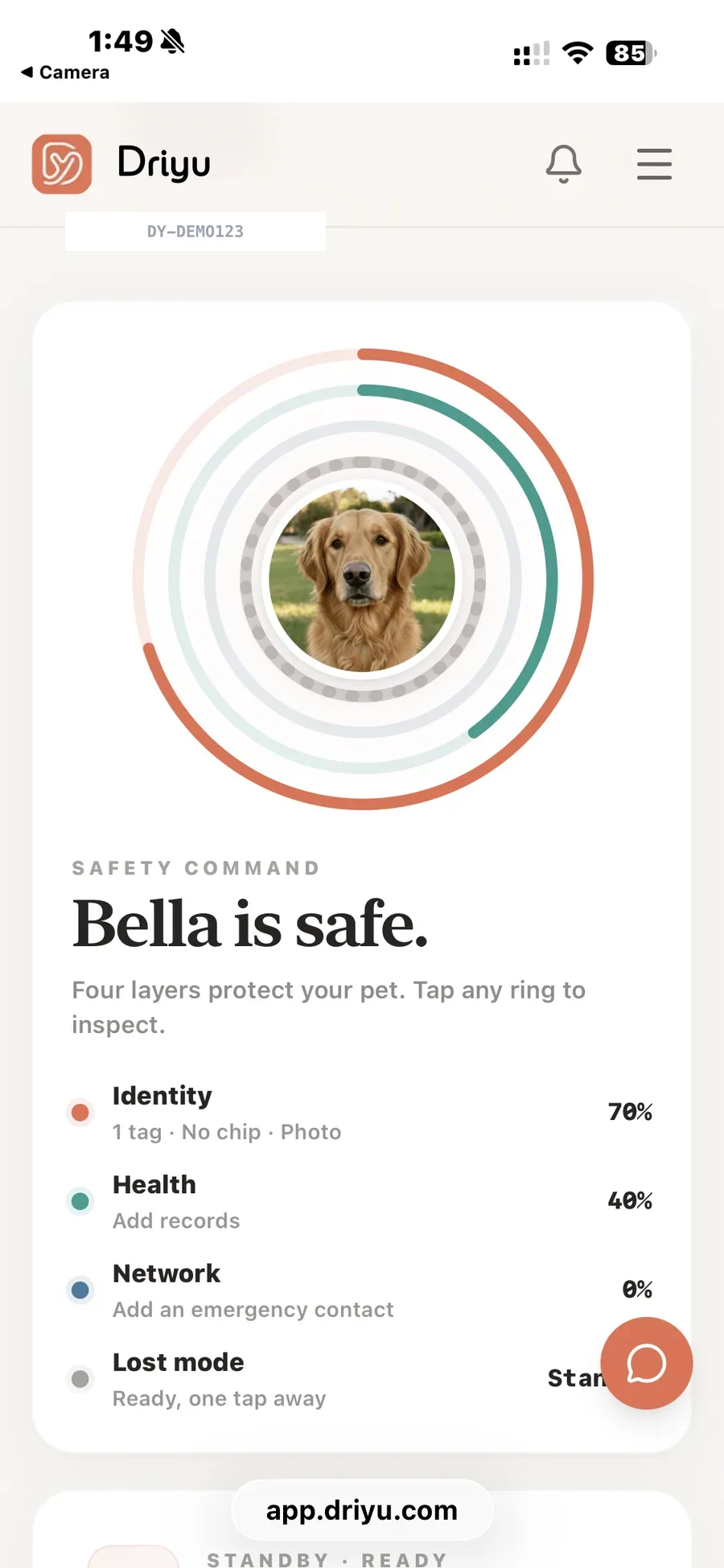
has been activated. After activation, you'll arrive at your pet's safety
- Time 1:24
dashboard. Your pet's profile does not need to be fully completed right away.
- Time 1:30
Driyu makes the first step simple, so your tag can be connected quickly.
- Time 1:34
But when you have more time, we recommend completing the rest of your pet's
- Time 1:39
profile with important details like contact information,
- Time 1:42
medical notes, allergies, behavior notes, and anything someone may need
- Time 1:48
to know in an emergency.
- Time 1:49
The more complete your pet's profile is, the more helpful your Driyu tag can
- Time 1:54
be. We also recommend checking your pet's profile every couple of months to
- Time 1:59
make sure the information is still current.
- Time 2:01
That way, if your pet is ever lost or found, you are ready.
- Time 2:06
And that's it. Your Driyu tag is now connected and ready to help keep your
- Time 2:11
pet easier to identify, easier to protect, and easier to bring home.
- Time 2:17
I hope this guide helped you complete your activation.
- Time 2:20
If you still have questions, you can visit the Driyu Help Center or contact
- Time 2:25
the Driyu Support Team for help.
- Time 2:27
Now go give your pup, kitty, or furry best friend a little hug from all of us
- Time 2:32
at Driyu. Welcome to the Driyu family.


SMART PET SAFETY
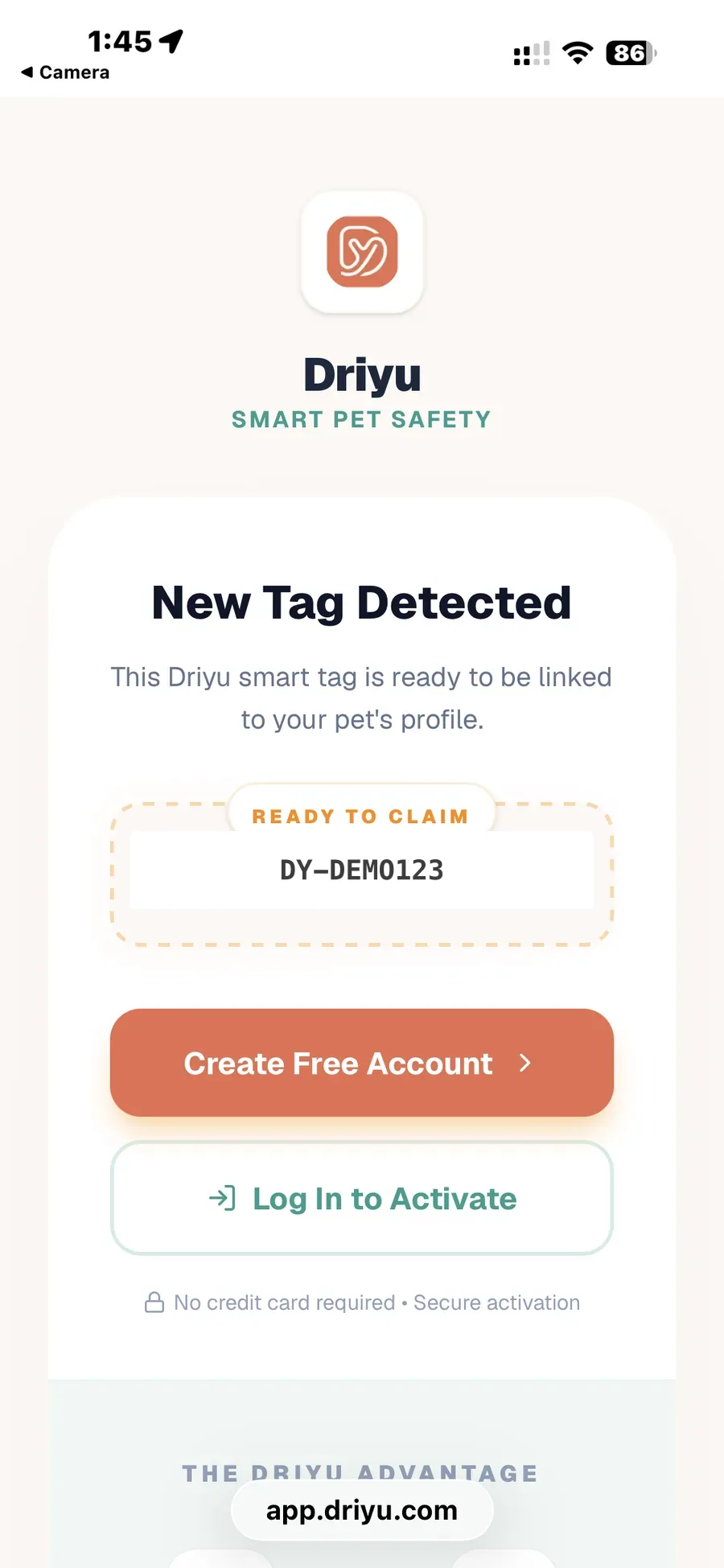
New Tag Detected
This Driyu smart tag is ready to be linked to your pet’s profile.
Fictional code. The next account step is simulated.
Prefer to enter the code?
If you already have an account and pet, open Smart tags → Link a Tag → I have a tag. Enter the code and select your pet.
A LOOK INSIDE THE APP
See the setup screens.
Open a step to see the guide’s app screenshots. The walkthrough above also shows how to choose an existing pet.
01Scan the QR Code on Your Tag
Step 1
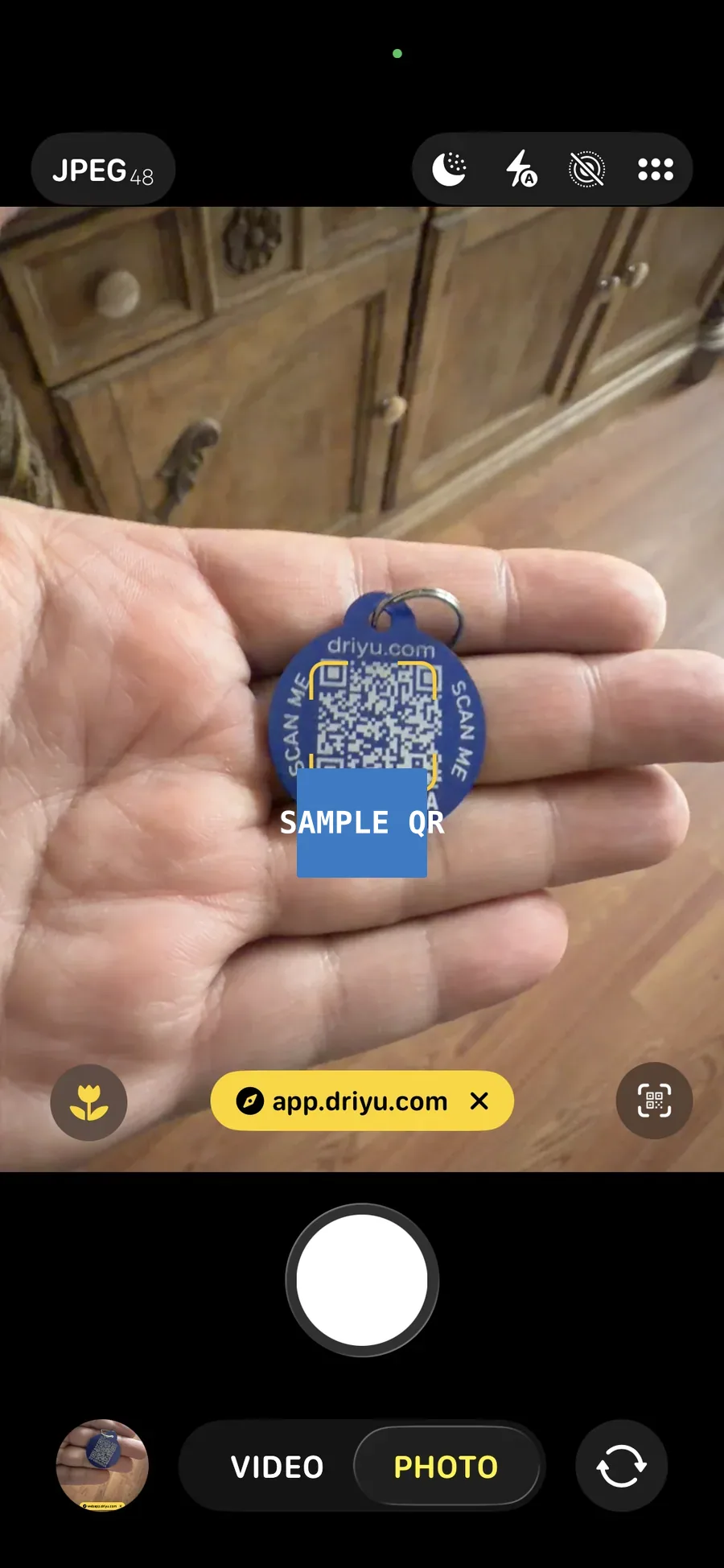
Sample QR shown. Scan your own tag.
02Confirm Your Tag Was Detected
Step 2
03Create Your Free Account
Step 3 · part 1
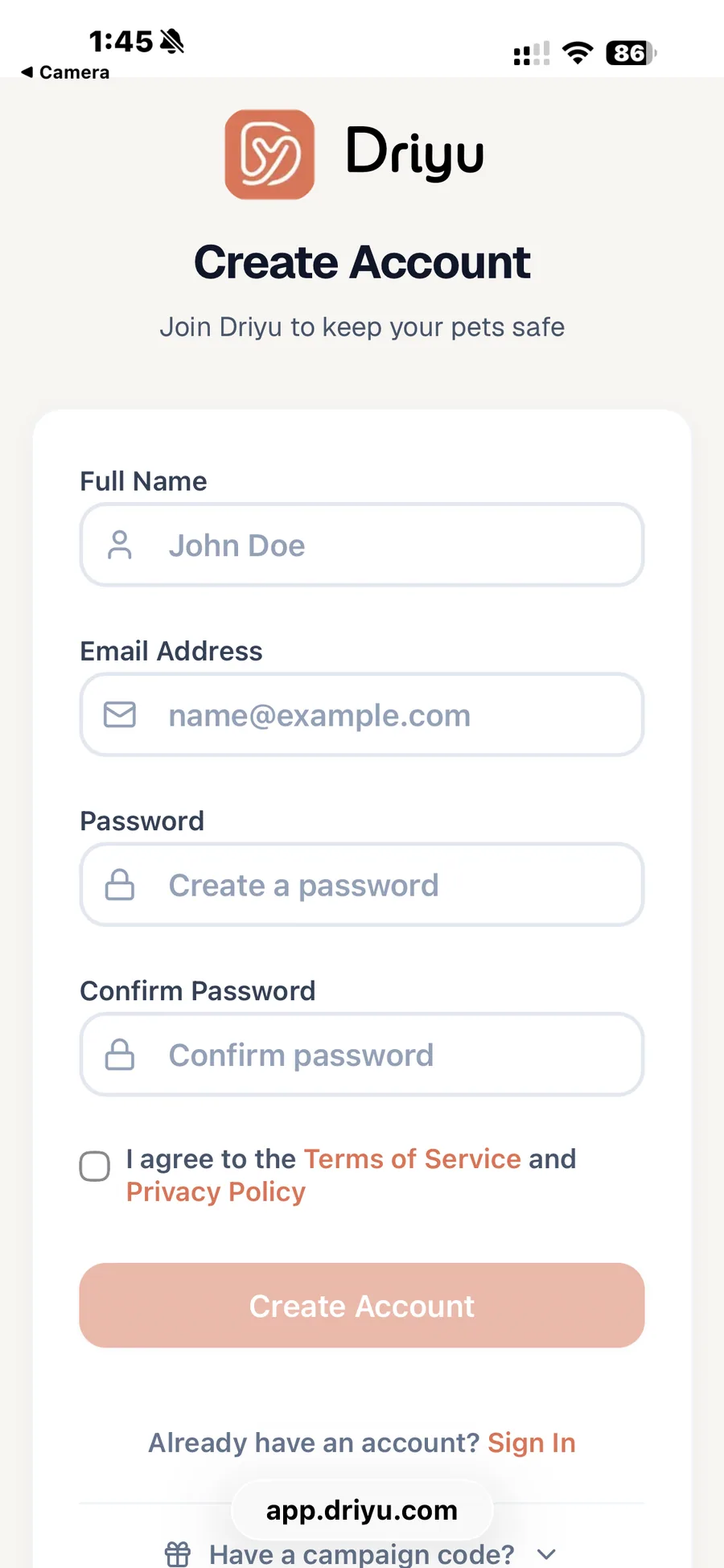
Step 3 · part 2
04Activate the Tag
Step 4
05Add Your Pet's Basic Details
Step 5 · part 1
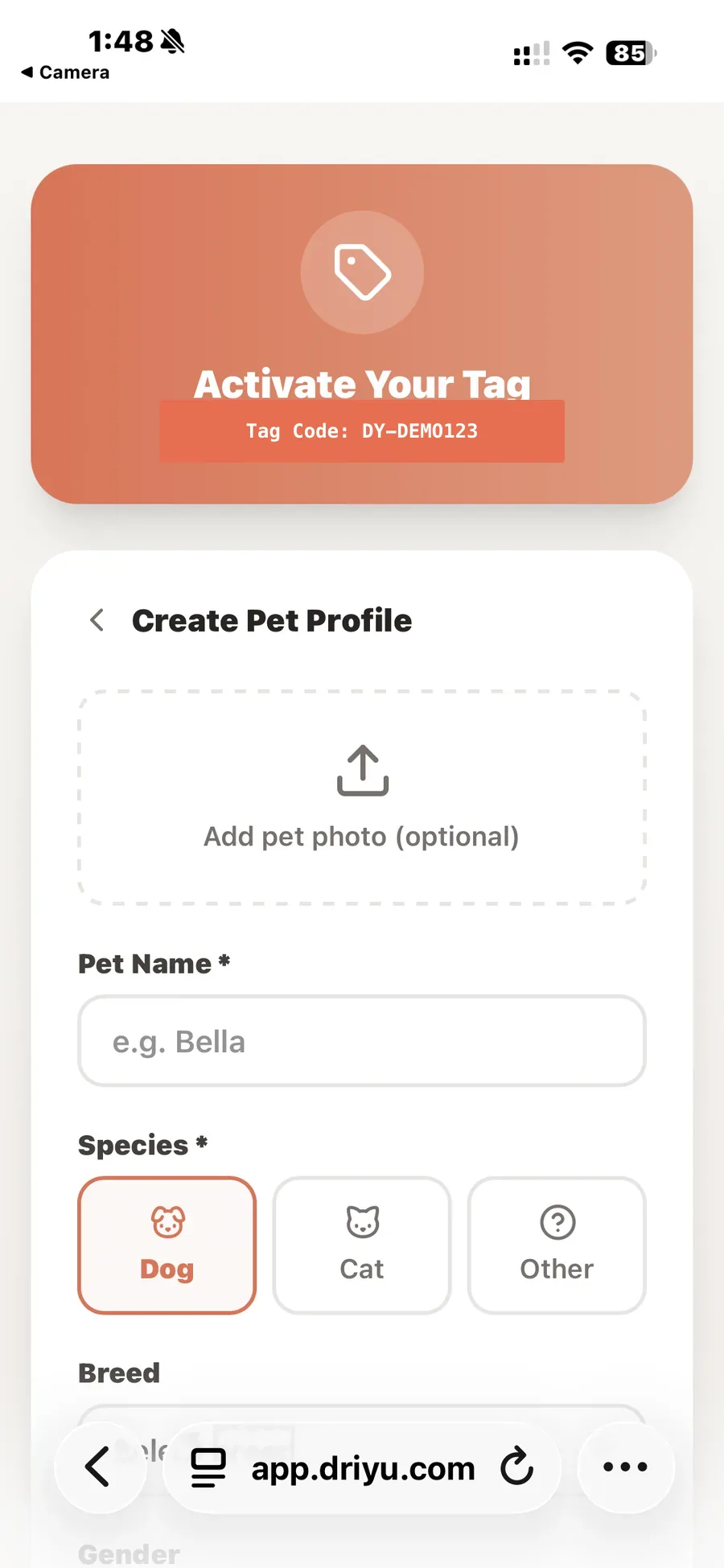
Step 5 · part 2
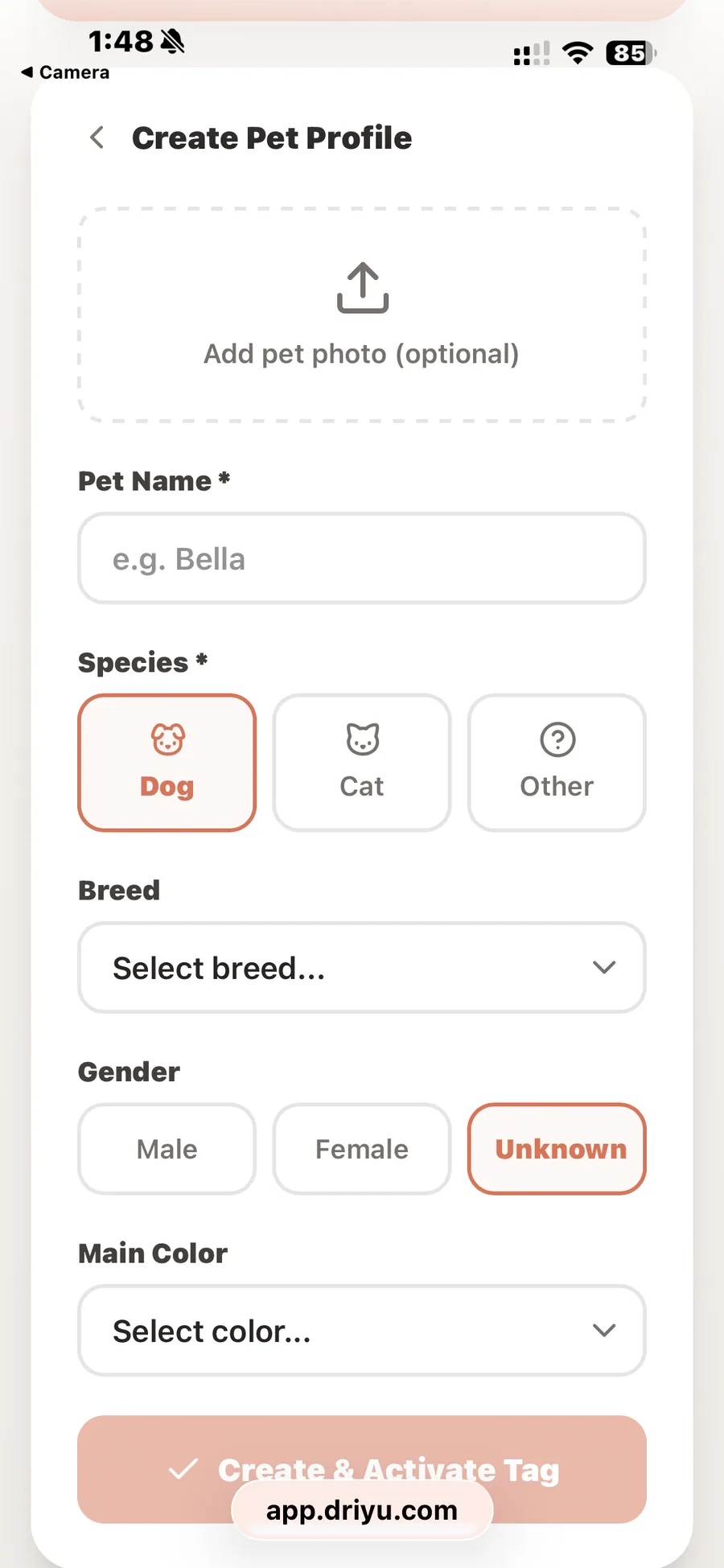
Step 5 · part 3
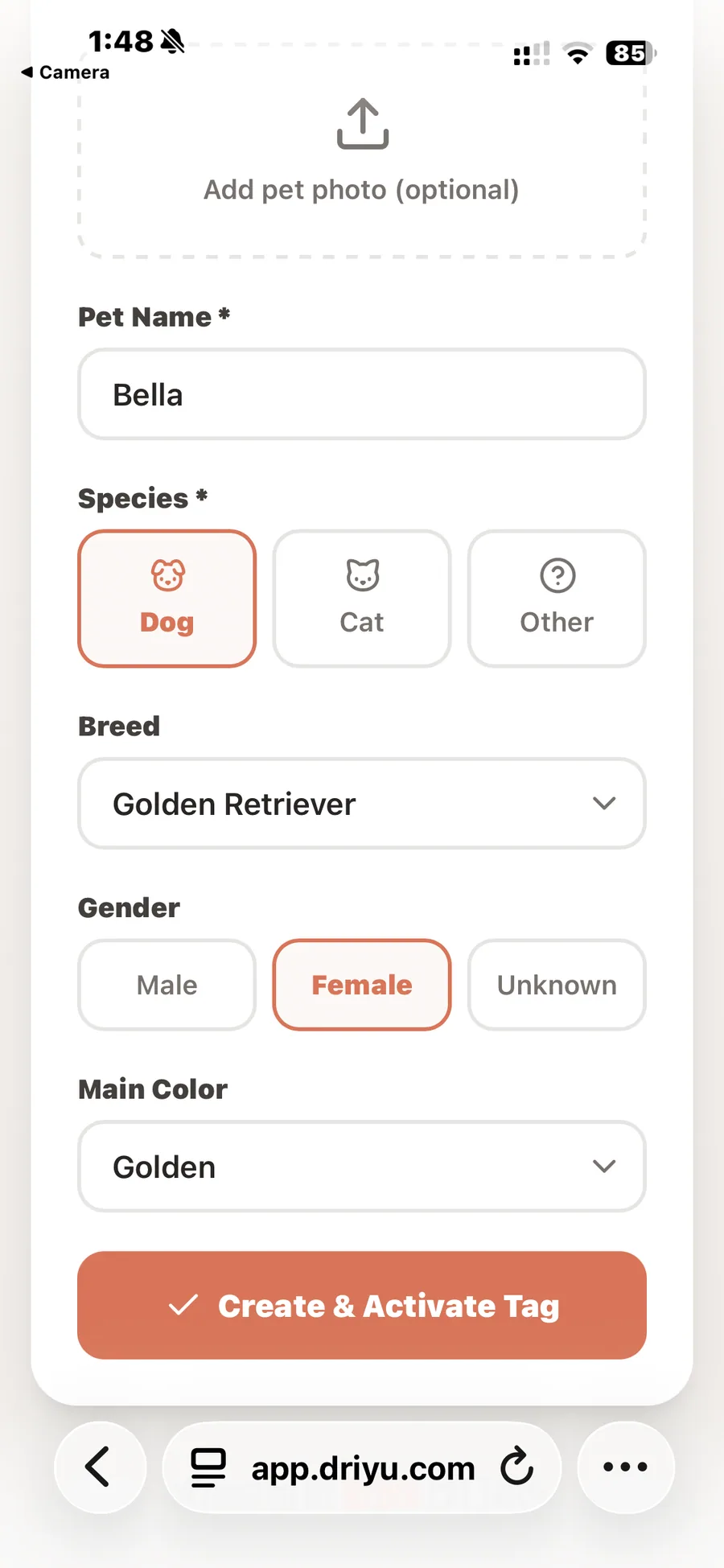
06Add a Photo and Create the Profile
Step 6
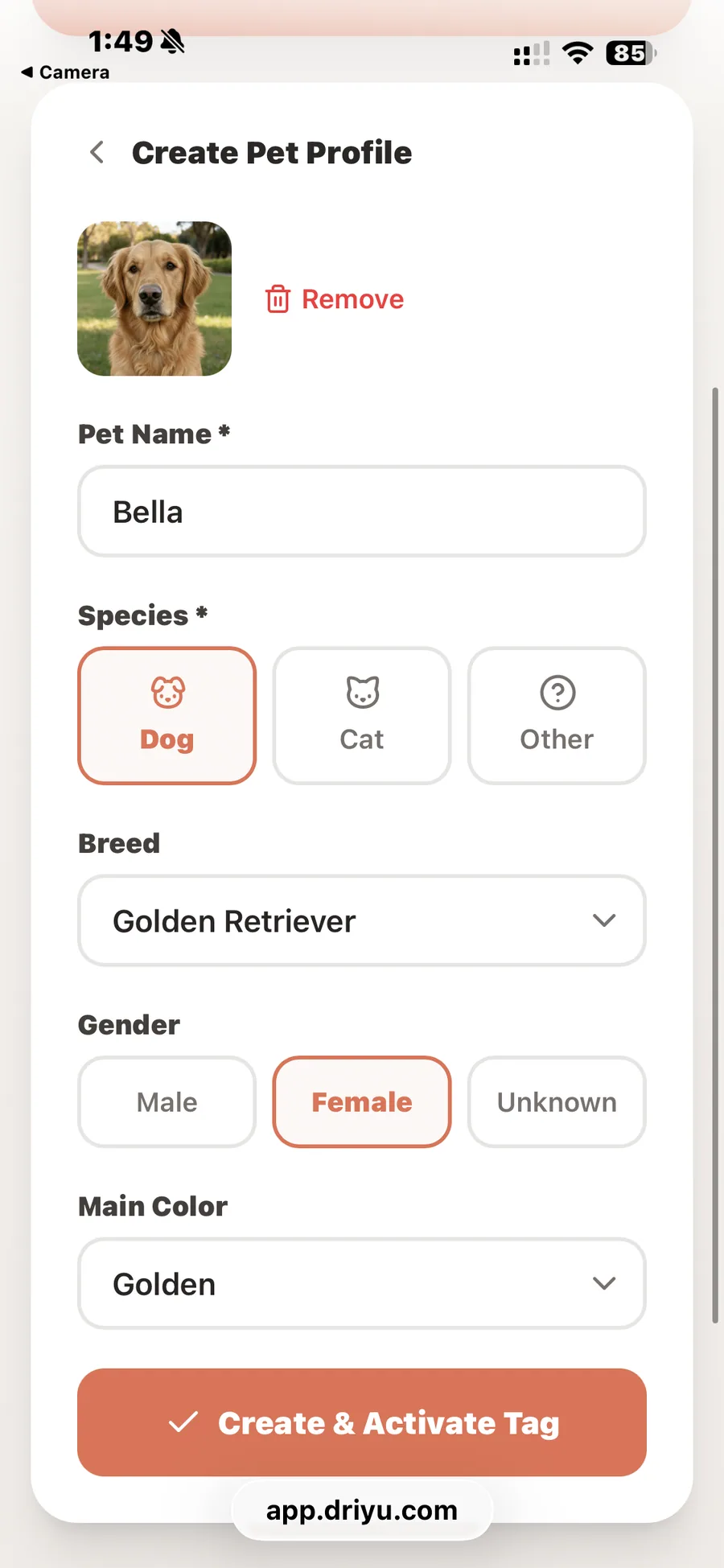
07See Your Confirmation
Step 7
08Your Pet Safety Dashboard
Step 8
IN CASE YOU’RE WONDERING
A little clarity.
What if the tag is already connected?
A tag linked to a pet opens the public pet profile. If it is yours, use your account to manage it. If you found someone else’s pet, use the contact choices on that public profile.
Why does the app say the tag is being set up?
A tag reserved for a handoff shows a setup message. Check for the setup email or ask the person who gave you the tag to resend it. That reserved state is different from an available new tag.
Do I need another pet profile for a replacement tag?
Use Assign to Existing Pet and select the pet you already registered. Confirm the link succeeded, then open the new code to check it. Linking another tag does not automatically disable the old one; review its status separately in your account.
Why can a disabled tag still open a profile?
The app checks for another active tag linked to the same pet and can redirect to it. If none is found, it shows the unavailable-tag page. Disabling a tag is not a promise that its link stops opening the public profile.
What if activation fails or says already activated?
An error is not confirmation of activation. Check the code and the message before retrying. If the tag is already linked to your account, review it there. A tag claimed by someone else cannot be claimed again through this flow; contact Driyu support if you believe the message is incorrect.
Does this demo activate my real tag?
No. It uses a fictional code, prepared pet details, and a simulated account checkpoint. The real app checks tag availability and ownership before linking. This page never makes that request.
AFTER ACTIVATION
Connected is the beginning.
Now, fill in their story.
Finish setting up your pet’s protection
Activating your tag connects it to your pet. The strongest protection comes when the rest of your account is complete. After activation, open your dashboard and take a few minutes to finish the items below.
Finish your pet’s profile.
Add a clear photo and fill in your pet’s details — species, breed, gender, weight, main color, distinguishing marks, and microchip number if your pet has one.
Complete your personal profile.
Add your name and a reachable phone number. The saved home-address field does not appear on the public scan page, but public notes and photos can reveal details you include. Review the contact information you choose to show a finder.
Add an emergency contact.
Add a family member, friend, neighbor, veterinarian, or groomer who can be reached if you cannot. You can mark a primary contact and choose whether they are notified by email or text message.
Add health and safety information.
Add allergies, current medications, vaccinations, and any special instructions a finder or caretaker would need to know about your pet.
Review your public recovery preferences.
In your account visibility settings, choose what a finder can see when they scan your tag — your phone, email, city, state, and backup contacts. Keeping your phone and email visible helps a finder reach you faster.
Review recovery notifications.
Opening the tag’s public page does not by itself send you an alert. When a pet or tag is marked lost, a finder can submit a separate report. Notification delivery depends on your settings and service availability.
Keep checking your dashboard.
Your dashboard shows how complete your pet’s profile is. Keep adding details until your profile is as complete as possible.
Driyu can only help with the information you give it. The more complete your pet’s profile is, the better Driyu can help in an emergency.